Categories
Categories in knowledge base
Categories help organize knowledge base files by topic into the desired structure, making them easier to find and review.
To expand the categories section, click the arrow in the knowledge base. The file list will shift to the right, and the categories menu will open on the left.
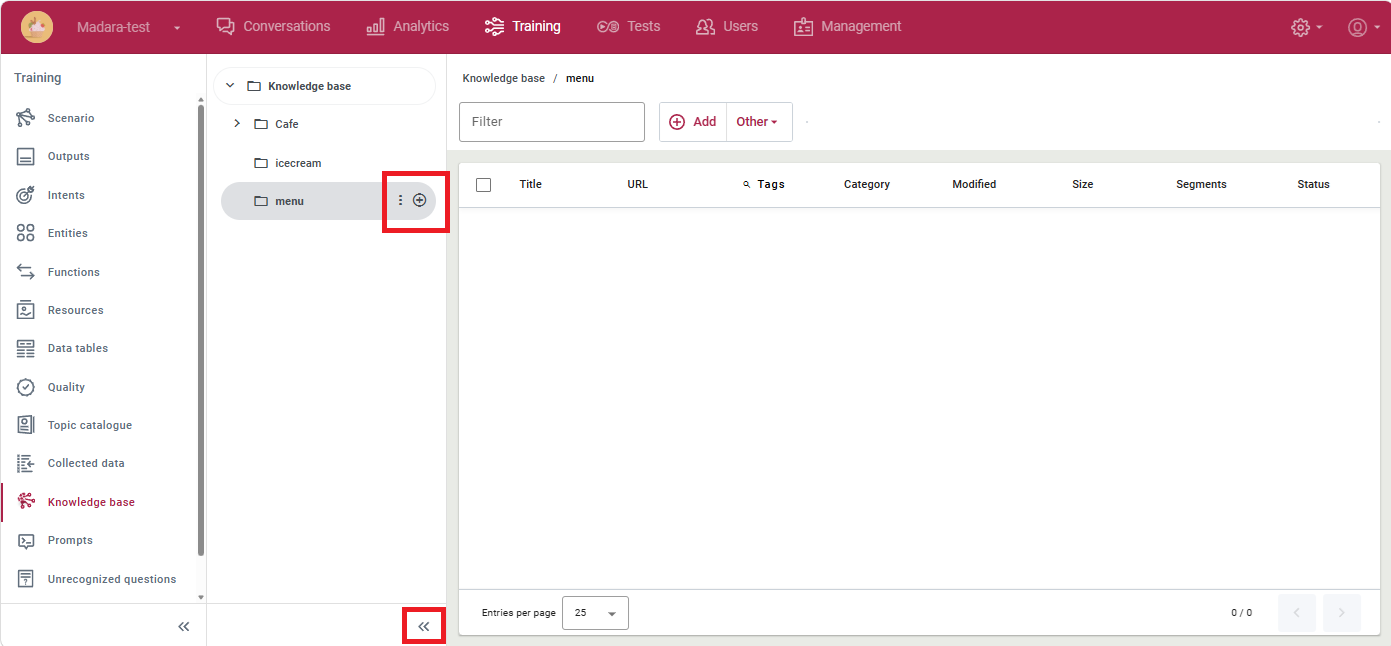
To assign a category to a file, you must first define the category in the category menu by clicking the “+” icon. Enter a name and description for the new category.
If you plan to use category detection in the virtual assistant, it is recommended to list keywords in the description field, separating them with commas. The maximum entry length is 300 characters.
The created category appears in the list, and you can add additional subcategories as needed.
Click the three dots next to any category to see three options:
- Edit – you can change the category name and description;
- Move – you can move the category to a different location within the category structure;
- Delete – you can delete the category.
Only one category can be assigned to a file. To assign it, open the knowledge base file and select the desired category in the Categories field of the File information section.
Category detection
In virtual assistants with automatic text generation, category detection can be enabled. (Please contact the website support team.) If category detection is enabled, after receiving a user’s question, the virtual assistant automatically determines which of the categories defined in the knowledge base it most closely matches. The category detection functionality evaluates the data in the category name and description fields. It is recommended to enter keywords in the description field, separating them with commas. The maximum entry length is 300 characters. If multiple matching categories are possible, the user is asked for clarification to determine exactly what the user wants to know. When a category is detected, the virtual assistant uses only the files belonging to the specified category to generate a response.
Read more:
The training view “Knowledge base”