Action "Automatically generated answer"
Action Automatically generated answer only works in assistants which have automatic text generation enabled (ask platform support team). Action Automatically generated answer lets the virtual assistant leverage the enabled large language model, so the virtual assistant can understand the user’s question and automatically generate a response, using information from knowledge base. The action can be added both in a State and in Transition section Virtual assistant replies.
It is recommended to start creating all new assistants by adding action Automatically generated answer to the scenario and preparing a knowledge base, where the action gets data; in cases of simple answers and questions, there is no need for a more expanded scenario.
In older intent-based assistants it is recommended to add the action as a fallback mechanism, if the assistant cannot determine the intent of a user’s question or if no appropriate response is defined in the scenario (typically in a scenario this is the transition with the lowest priority without intent that leads to the response “I don’t know”). Instead of previous response “I don’t know”, an AI model will be invoked to generate a response, using knowledge base content, and this response will be shown to the user in chat. Only if response cannot be generated from knowledge base data, the response “I don’t know” will be shown to the user.
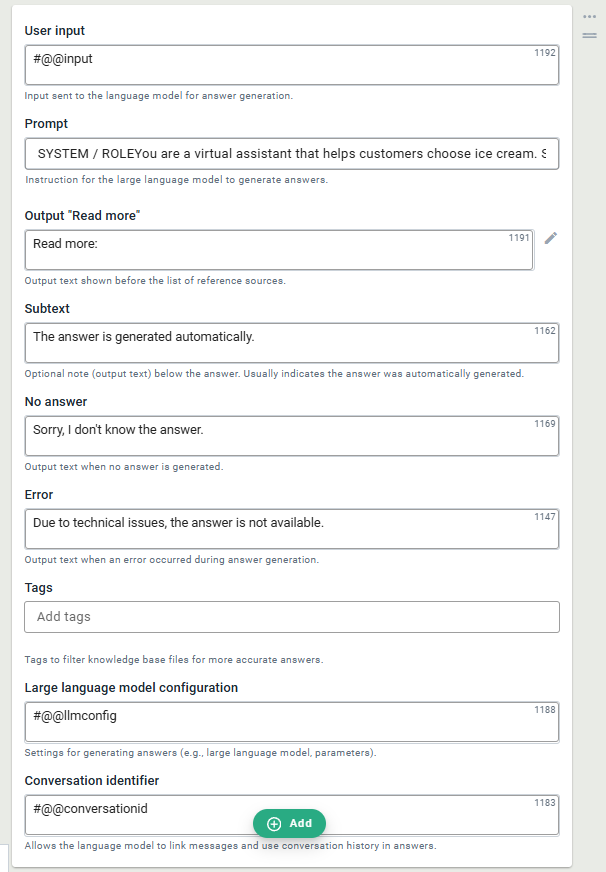
To enable automatically generated answers, add the action to the scenario and fill the fields.
-
(New virtual assistant)
Open the scenario, add a topic, create a self-loop and click Add -> Automatically generated answer in the Virtual assistant replies section(Older intent-based assistant)
Open the scenario, find the last-priority transition, remove existing response in Virtual assistant replies section and click Add -> Automatically generated answer -
Fill the action fields
-
User input. This field does not need to be filled in. By default, it is filled in automatically by reading the user's question #@@input. This value is required by the large language model to generate a response to the specified question.
-
Prompt. Select the prompt that will be sent to the large language model in request when generating the answer. The prompt should first be written in the Prompts view.
-
Output "Read more". References can be shown for the automatically generated answer. To find out, how to write data in file so that references are shown, see article Formatting references in the response.
-
Subtext. In the chat window, subtext is displayed as a note after each generated answer. This text usually indicates that the response was generated automatically; however, you can enter different text as you see fit and as needed.
-
No answer. In this field, specify the response that the virtual assistant should provide to the user if it is unable to generate a response based on the data available in the knowledge base.
-
Error. In this field, specify the message to display to the user if the large language model is unavailable and a response cannot be generated.
-
Tags. Fill in this field in cases when only a part of the knowledge base documents should be used in automatic generation. In such cases, appropriate tags are also added to the files in the knowledge base. If sorting files by tags is not planned, leave this field blank.
-
Large language model configuration. By default, the field is filled in automatically with #@@llmconfig, referencing the base configuration. If necessary, the configuration can be changed in specific cases. For more information on possible configuration parameters see the article LLMQnA service configuration parameters.
-
Conversation identifier. This field does not need to be filled in. By default, it is automatically filled with conversation identifier #@@conversationid. This parameter is used by large language model to follow user’s conversation history.
-
-
Save the changes and publish all.
-
Open the Try-out window and test if the automatic generation works as expected.