Using Glossaries in Machine Translation
Glossaries allow you to enforce specific terminology during translation.
Glossaries are created and managed in Tilde Term.
This page explains how they are applied and configured in the MT platform.
End-to-End Workflow (Text & File Translation)
You can create and use a glossary directly from Text & File Translation.
Workflow:
- Open Text & File Translation.
- Select source and target language.
- Open the Glossary menu.
- Click New glossary.
- Add term pairs in the MT Glossary view.
- Return to the translation view.
- Select the glossary.
- Translate.
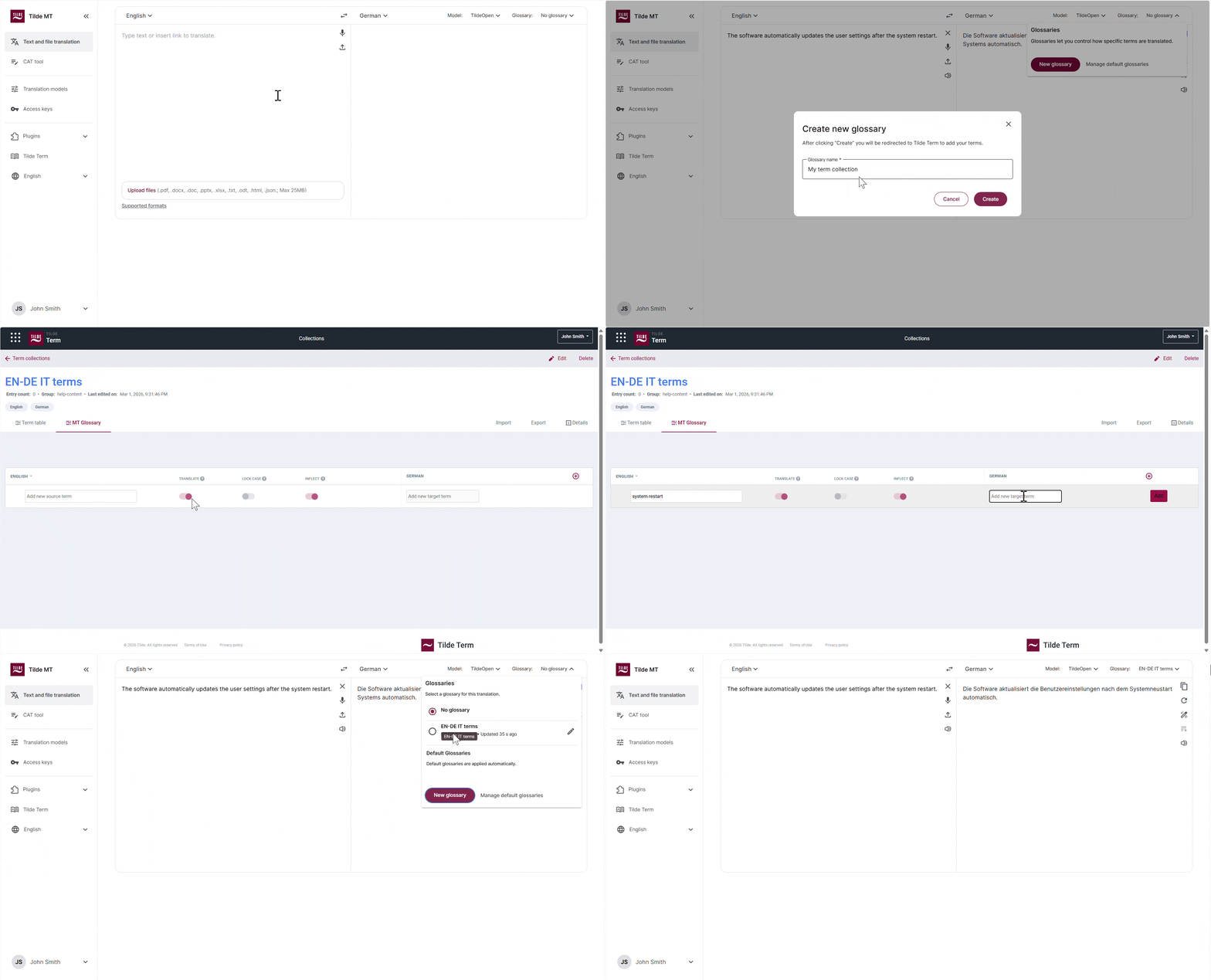
This workflow:
- Creates a glossary in Tilde Term
- Adds terminology entries
- Activates the glossary for the current translation session
Apply a Glossary Automatically (Default Glossary)
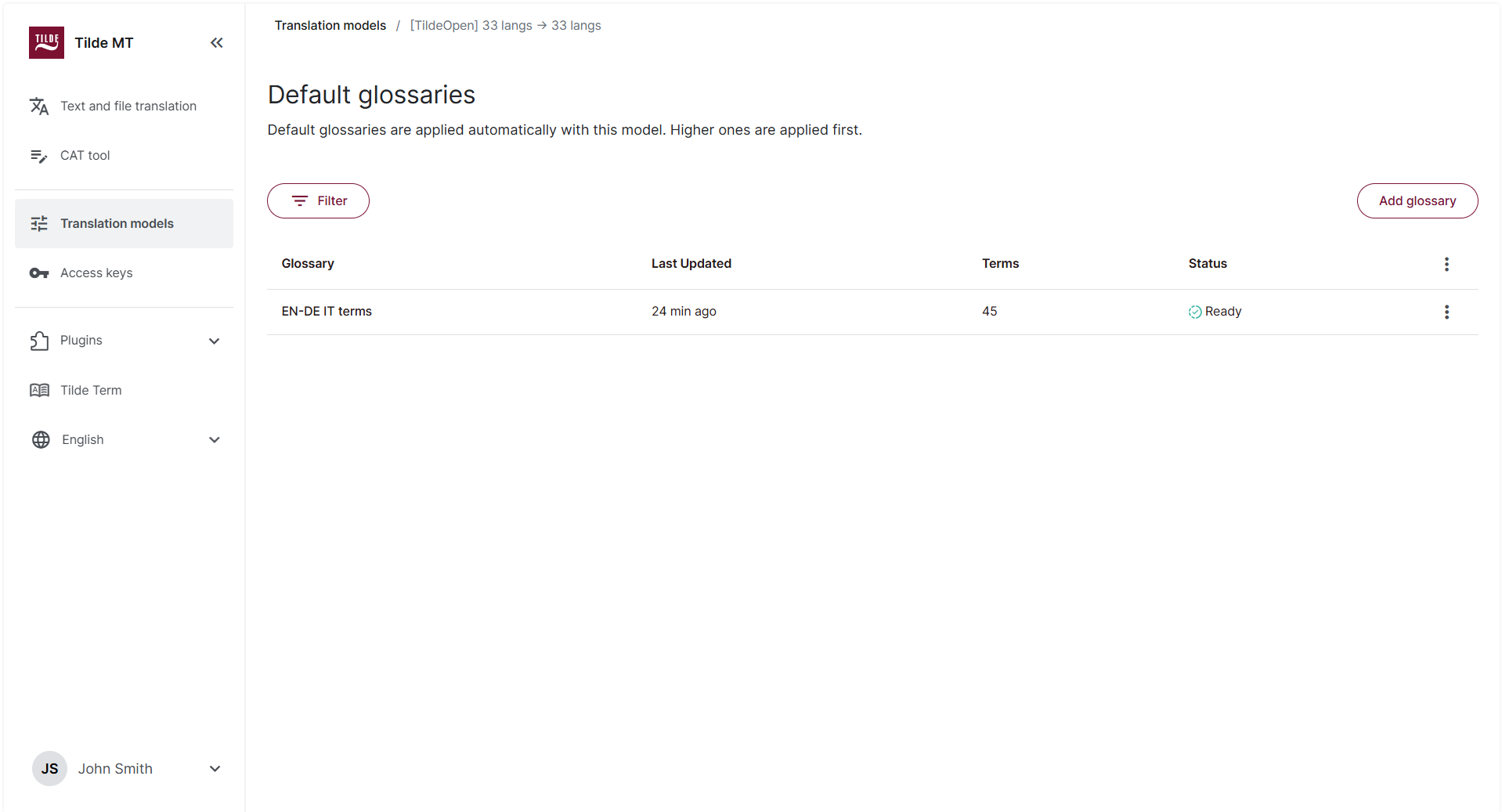
A glossary can be attached to a translation model as a default.
To configure:
- Open Translation Models.
- Select a model.
- Open Default glossaries.
- Add an existing glossary.
- Save changes.
When attached as default, the glossary applies automatically in:
- Text & File Translation
- CAT tool
- Plugins
- API integrations
- Website Translator
If multiple glossaries are attached:
- Priority order determines which term is applied.
- The glossary listed higher takes precedence.
Glossaries must be created before they can be attached as default.
Apply a Glossary Manually
A glossary can be selected manually for a specific configuration:
- In Text & File Translation
- In CAT tool configuration
- In Access key configuration
Manual selection applies only to that configuration and does not change model defaults.
How Glossaries Are Applied
When a glossary is active:
- The model detects matching source terms.
- Matching follows the term attributes defined in Tilde Term.
- The active target term is applied.
If no matching term exists, standard model output is used.
Glossary rules are applied at translation time.
Glossary Priority
If multiple glossaries contain the same source term:
- The glossary with higher priority in the model configuration is used.
- Manual selection overrides model defaults for that configuration.
Glossary Updates
Glossary changes affect new translations only.
Previously translated content is not updated automatically.
To apply updates:
- Re-translate affected segments
- Clear cached translations (Website Translator)
- Refresh suggestions in CAT tool