Speech-to-text
Real-time event transcription
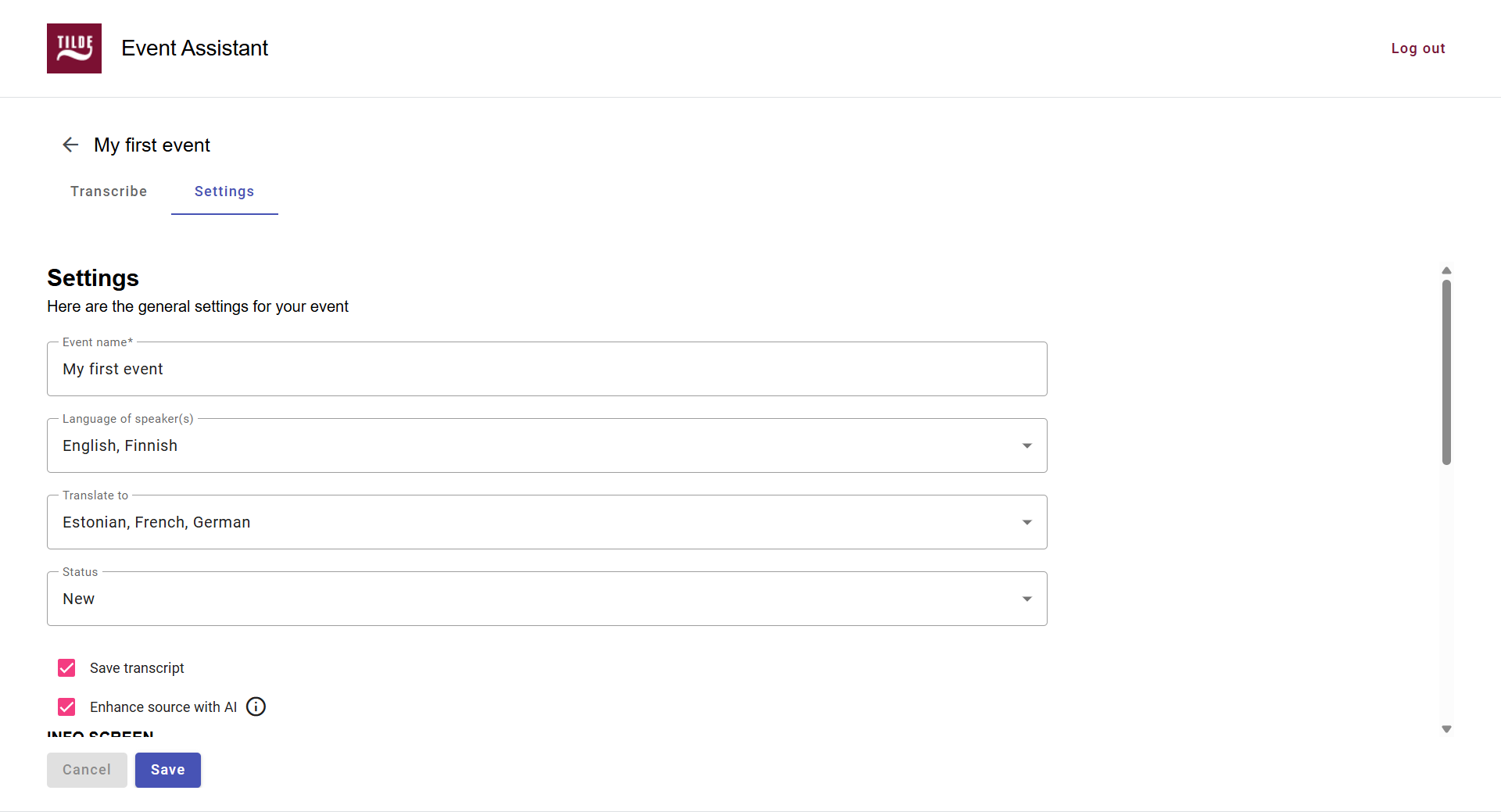
Figure 1. Event settings. 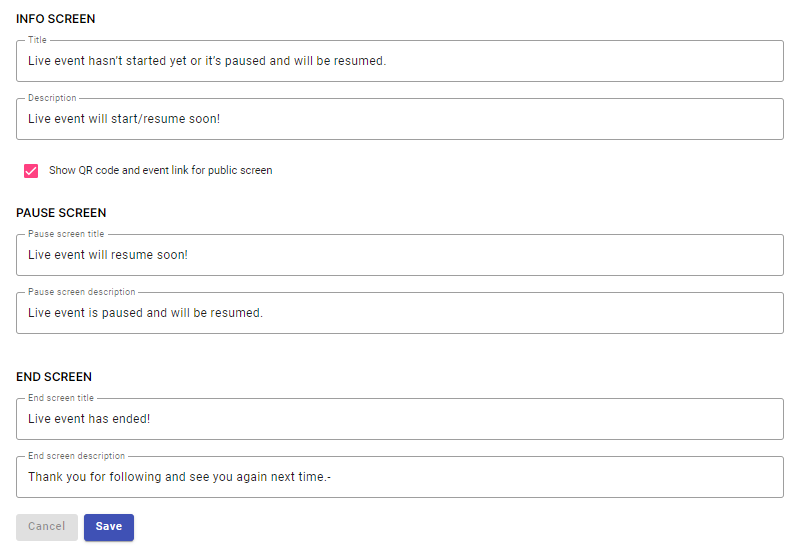
Figure 2. Info screens. 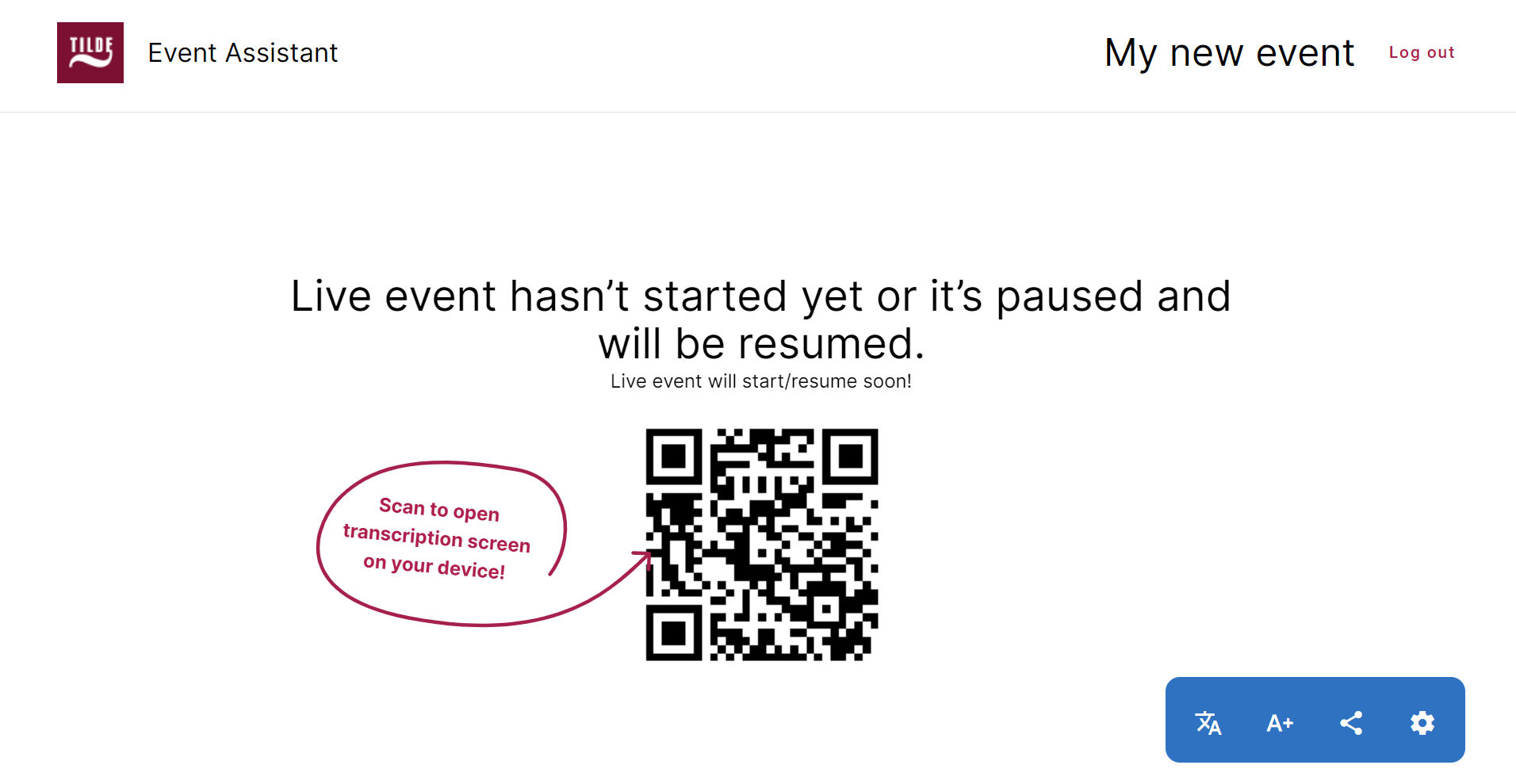
Figure 3. Default attendee view. 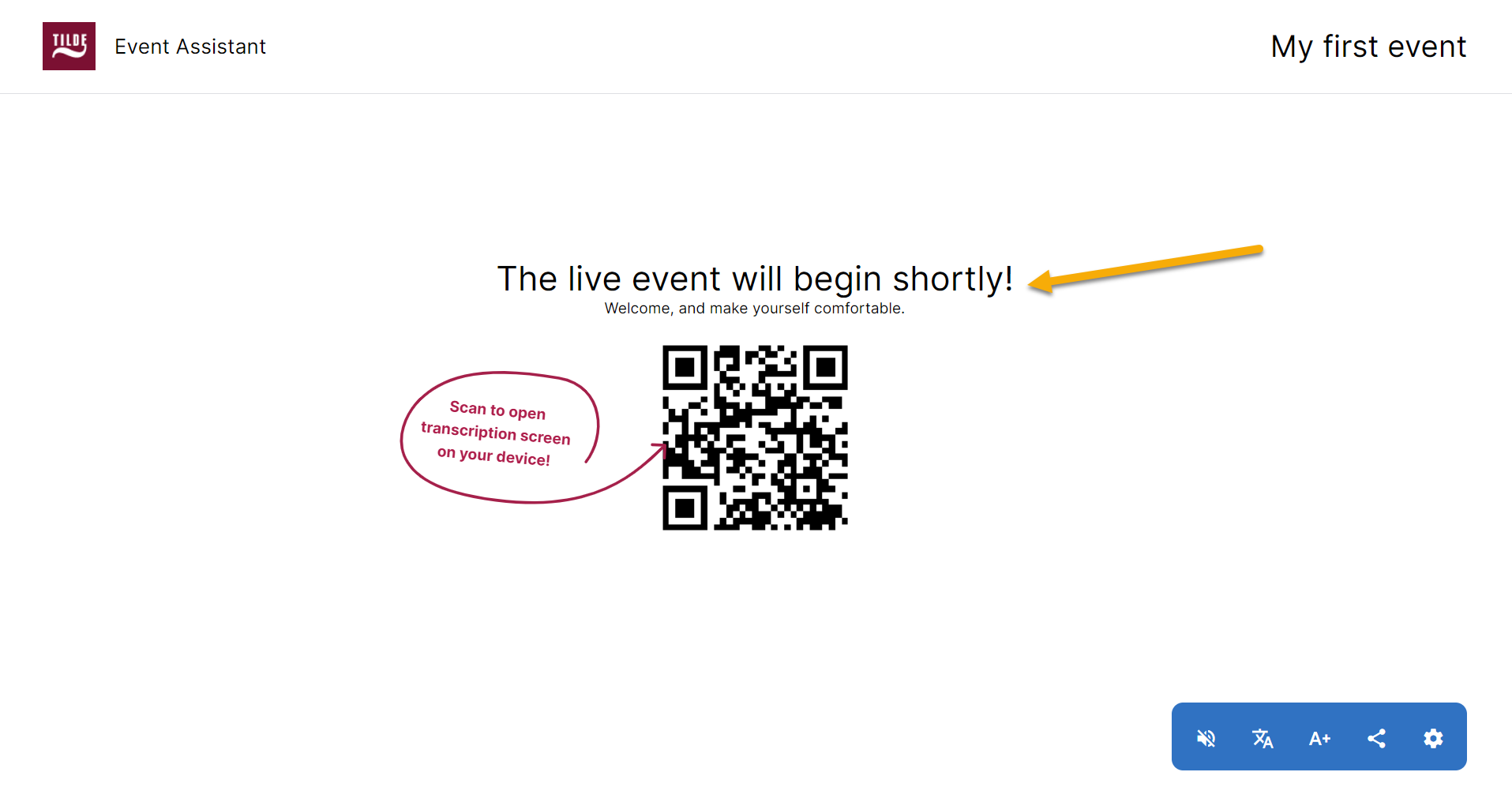
Figure 4. Attendee view with customized text. 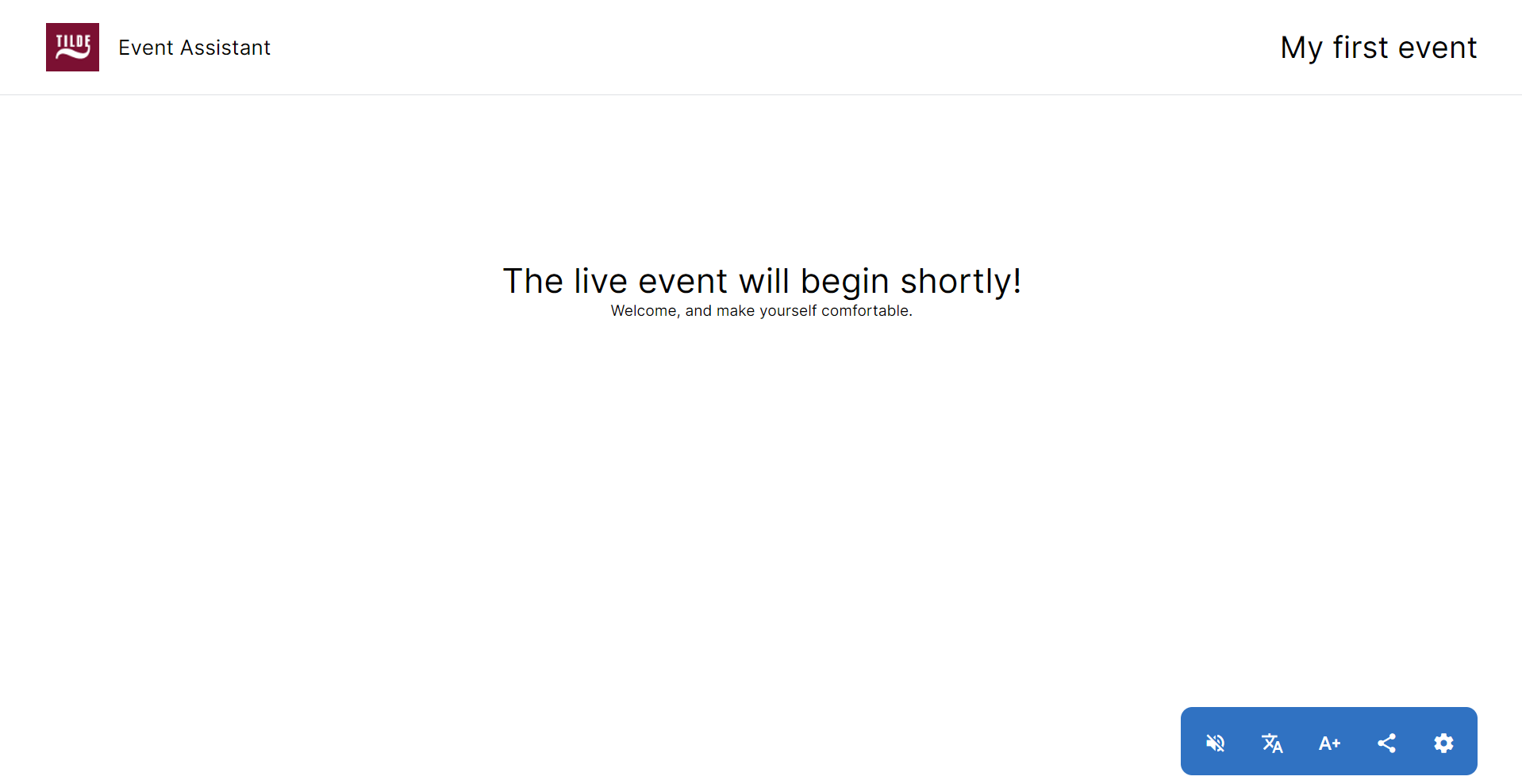
Figure 5. Attendee view without QR code and link sharing.
Edit event settings
To edit an event's settings, open the event from the event list and click the Settings tab.
General event settings
Customize key details about your event:
- Event name: Update the title of your event.
- Language of speaker(s): Specify the language used by speakers.
- Translate to: Set the languages available for translation.
- Status: Modify the current status of your event:
- New: The event hasn't started yet.
- In progress: The event is ongoing.
- Paused: The event is paused.
- Finished: The event has concluded.
- Save transcript: This allows you to download the event transcript and generate summaries.
- Enhance source with AI: This improves the clarity and readability of the speaker's text by automatically removing filler words and refining the language for a more polished transcript.
Customize attendee experience
Tailor what attendees see during different event phases:
- Info Screen: Update the content shown before the event starts.
- Show QR Code and event link for public screen: Choose to show or hide these elements.
- Pause Screen: Customize the information displayed when the event is paused.
- End Screen: Edit the details shown after the event finishes.
Default attendee view
Attendee view with customized text
Attendee view without QR code and link sharing